What is an AI demo?

Despite how long AI’s been in the zeitgeist, it’s relatively new in the demo world.
That means “AI demo” can mean a lot of different things to a lot of different people.
And if you’re a PMM, SE, or sales leader choosing between tools, it’s hard to know which one truly meets your requirements.
Keep reading to learn what an AI demo is, the three stages of AI demos (and how to build them), plus when to use each one.
What is an AI demo?
Technically, an AI demo is any product demo where AI builds the demo, AI appears in the demo, or AI runs the demo.
In our minds, these map to three different stages:
- Stage 1: AI writes and assembles the demo. You show or tell AI what to build, and it creates a draft demo that you can tweak.
- Stage 2: The demo shows AI functionality. Say you just launched a chatbot. You build a demo that showcases that feature in action.
- Stage 3: The demo is fully agentic. An AI agent navigates your product autonomously and answers prospect questions in real time.
Below, we walk through each in detail.
| Stage 1: Built with AI | Stage 2: Shows AI | Stage 3: Fully agentic | |
|---|---|---|---|
| Who does the work | The builder, with AI's help | The demo | The agent |
| What AI does | Writes copy and CTAs, anchors tooltips, and structures the story | Animates your AI feature so it looks like it's running live | Walks visitors through your product, answers questions, and qualifies leads |
| What you do | Click through your product, then review and approve edits | Capture the before and after screens, then add text animation or a video | Feed it context, test it, and embed it |
| Best for | Building demos faster | Selling an AI product | Dynamic, conversational demos |
| In Navattic | Copilot | Animating Text and video steps | Navattic Agents |
Stage 1: Demos built with AI
Demo automation tools (which use AI to build demos) help you get a first draft of your demo off the ground faster.
Per Mo Idowu at Baselane, a SaaS access auditing tool:
“AI helps speed up the demo creation process. It gives us a solid foundation for copywriting, is very intuitive, and the ability to add use cases made the outputs more spot-on.”
Here’s how it works in Navattic:
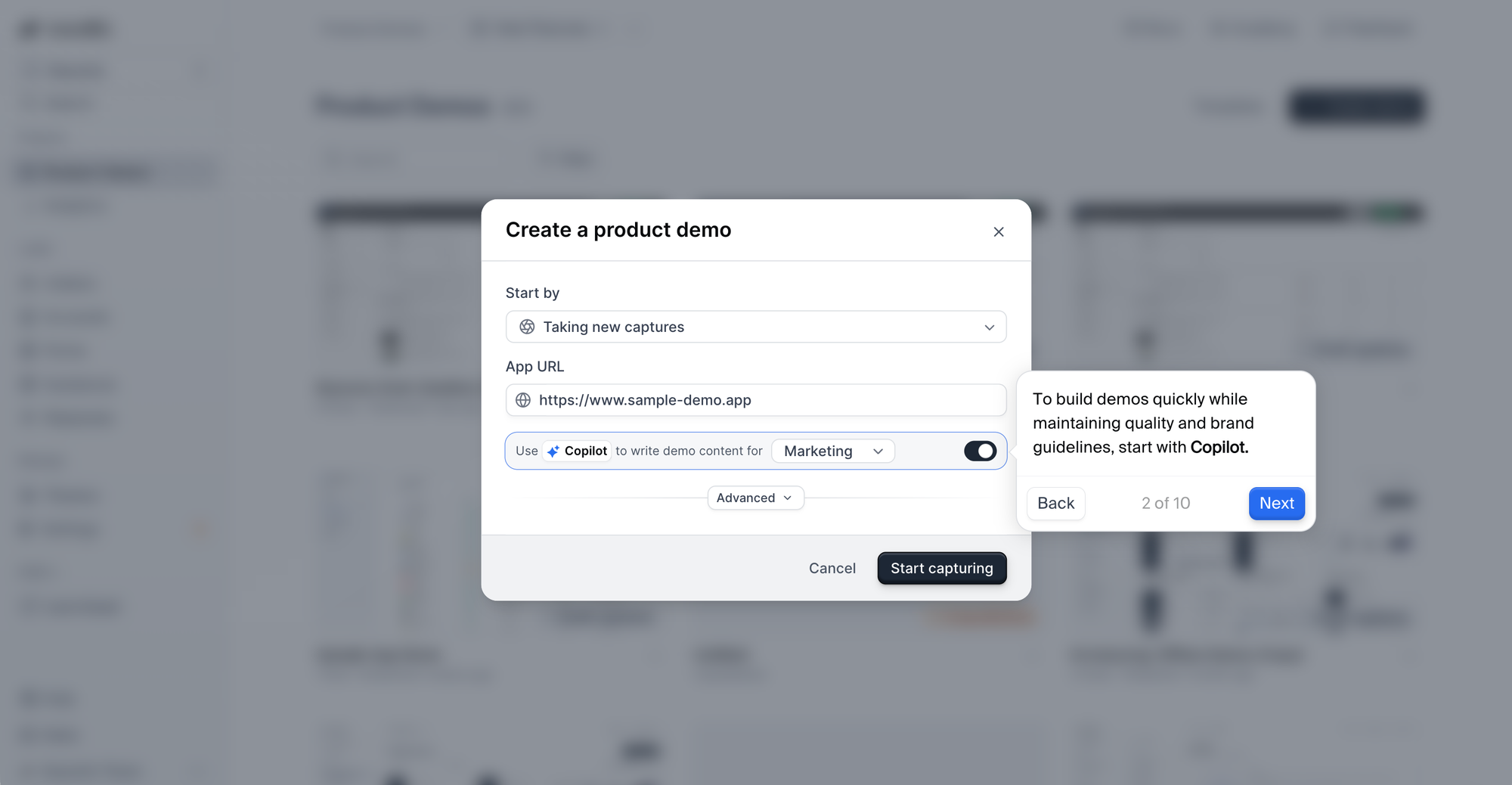
Step 1: Walk through your product with Copilot
Click each screen, and Copilot will collect captures and create the demo for you, including:
- Writing copy and CTAs
- Anchoring tooltips
- A compelling end-to-end story structure
It’s built on best practices from 30,000+ demos, and you can provide your brand voice and style guidelines to make sure messaging is on point.
Step 2: Make adjustments
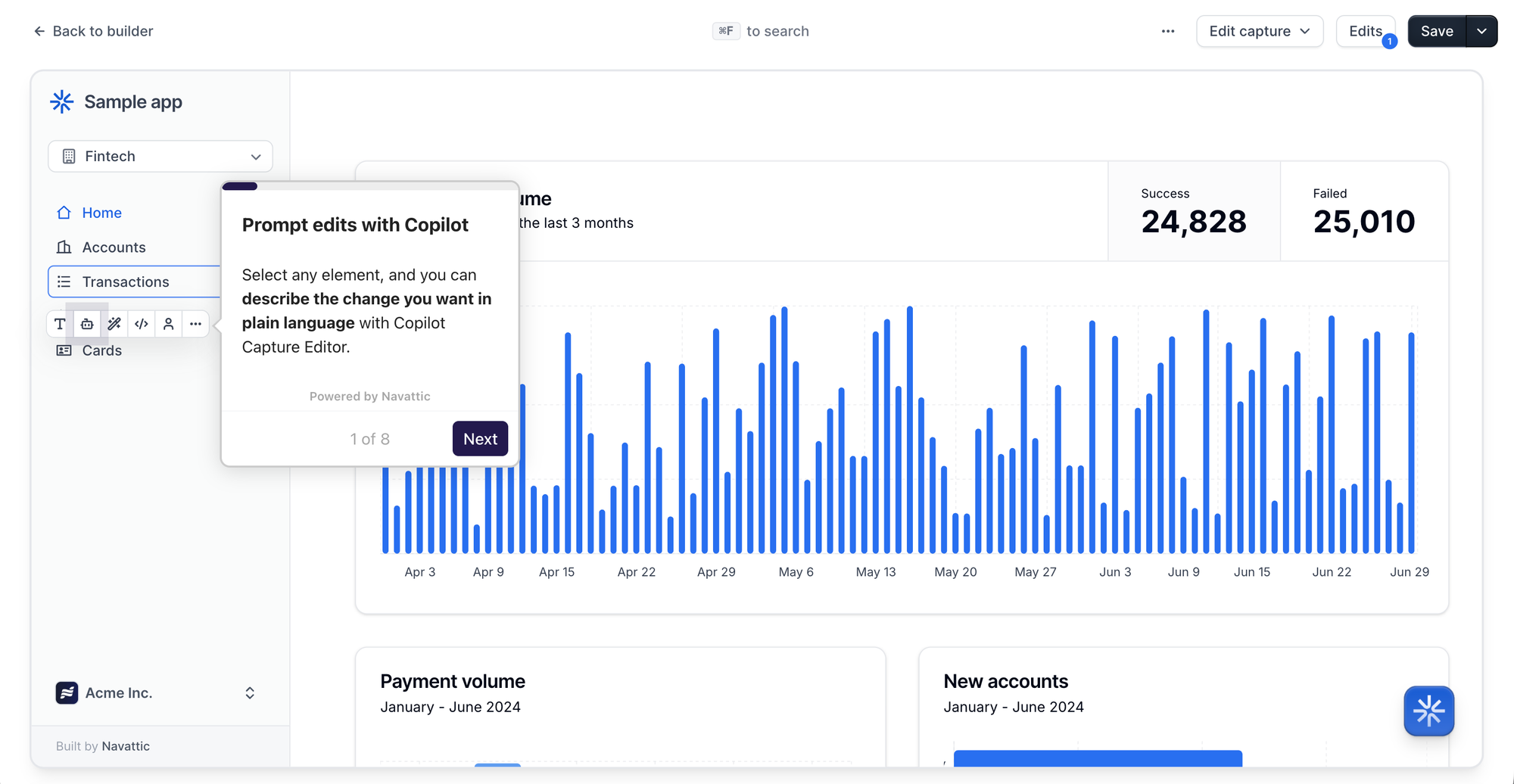
Rather than clicking through menus and editing your demo yourself, describe what you want to change in plain language, and Copilot will apply the changes for you.
You can ask it to amend:
- Your demo backdrop
- Step names
- Step content
- Buttons
- Beacons and triggers
- Voiceovers
- Other flow-level settings
You can even ask Copilot to make changes in bulk with a prompt like, Please remove the news banner from every step, and it will apply across the whole capture.
Step 3: Accept (or reject) Copilot’s suggestions
After you submit a prompt, Copilot will present suggestions in a panel. Each one comes with a brief explanation of what Copilot recommends, noting:
- The type of change (content update, new step, or rename)
- Which step(s) are affected
- What your change will look like
Hit Apply or Discard to implement or ignore each change.
Step 4: Review your demo
Copilot's built-in Review feature analyzes your final demo for structure, clarity, and engagement against our highest-performing benchmarks to give you an “AI demo score.”
It will also provide actionable feedback, which you can choose to use or dismiss.
Once your demo feels ready, publish and share it with your audience.
Stage 2: Demos that show AI functionality
AI products and features are tough to demo live because you never know how they’re going to perform.
At the same time, showing a static screenshot or even a product video isn’t enough to convince a buyer that what it does is (1) real and (2) valuable.
AI demos are a happy medium. You can add motion to an element to make it look like your AI feature is working in real time.
Here’s how it works in Navattic:
Step 1: Capture the AI screen
Say you just launched a chatbot.
First, you’ll need to capture the before state and the after state.
The before in this case is where the user types in their question, and the after is the response the chatbot returns as its answer.
Step 2: Apply text animation
Head to your “before” capture and highlight the “typing” text you want to animate. Then:
- Click Magic Editors → Animate Text → Apply Animation.
- Pick your trigger. “On screen load” tends to work best, but you can add a delay.
- Adjust your speed. The typing should be fast enough to look natural, like someone is actually typing, but slow enough that the person going through your demo can read it.
- Preview the step to make sure it’s digestible.
Head to the “after” capture and repeat these 4 steps for the AI-generated response.
Optional Step 3: Add a GIF or video
If your AI feature doesn’t lend itself to animated text, or has another component that’s a little harder to show with animation, a short video or GIF can bring your product’s AI features to life.
To add one:
- Select Video from the Step type dropdown in the Flow Builder (this applies to GIFs as well).
- Upload a video file directly from your computer, paste in a link to a YouTube, Vimeo, Loom, Wistia, Vidyard, or Highspot video, or record a new video.
After your demo is published, you’ll be able to see playback analytics in the demo analyze tab.
You might also add narration to ensure visitors understand exactly what’s happening in your demo:
- Open the Navattic Chrome Extension and select your microphone.
- Go through your application as if you’re giving a demo, and speak your narration aloud.
- End the capture session.
Navattic Copilot uses your audio and the capture timestamps to sync everything together.
Step 4: Edit your demo
Most AI features tend to change frequently. But that doesn’t mean you have to start all over.
With Copilot, you can swap captures, videos, and GIFs in and out, or use:
- Find + Replace to replace all instances of a specific word, phrase, or image across an entire capture
- Copilot capture editing to edit data in your demo based on a prompt (e.g., Please change all these opps to martech startups)
- Up-to-date to find and update old dates
Want some examples? Read How to Bring Your AI Demo to Life.
Stage 3: Fully agentic demos
If you’re getting a lot of inbound, there’s no way your SEs and AEs will have time to give every lead a customized demo.
Agentic demos solve that problem by walking website visitors through your product and answering their questions live.
Peyton Walbeck, VP of Marketing at Nectar, shares:
“Our Agent gives our prospects a simple, self-guided way to evaluate our product and determine fit, while freeing up our sales team’s calendars to focus their time on strike zone opportunities.”
If the agent doesn’t know how to answer something, it passes it to a human. The agent also asks questions to qualify leads and gather intel for future follow-up.
Qualified leads route straight to a rep, along with the demo transcript for inspo on what to focus on in a live demo.
Agentic AI demos are best used for:
- SMB deflection. Productboard uses its agent for low-touch and self-serve prospects. As Elizabeth Johnstone, Customer Education and Enablement at Productboard, puts it: “We’re using our Navattic agent to give low-touch and self-serve prospects a real, interactive product experience 24/7, especially when they’re interested but not quite ready to hop on a call with a human.”
- Capturing website traffic. Bloomerang saw 113% more meetings booked and $16k more pipeline in a 30-day A/B test against interactive demos.
- Enablement. Send an agent in onboarding emails or add it to your help docs or LMS, so new customers can ask questions and see the answers in your product as they learn.
Here’s how to build an agentic demo in Navattic:
Step 1: Curate detailed context
To show the right parts of your product and answer prospect questions correctly, your agent needs some context.
Feed it resources like:
- Recorded demos
- Your docs
- FAQs
- Your Flow library
From there, map click paths to each piece of knowledge. That way, when someone asks to see feature A, the agent knows what it should (and should not) tell them.
Step 2: Test your agent
More technical folks, such as SEs or even product team members, are ideal candidates for testing.
Have them ask complex questions and make sure the agent answers appropriately, highlights the right features, and explains their value the right way.
Make sure to test gotchas, too, such as questions that would prompt the agent to:
- Give up product roadmap details or other sensitive information
- Disparage a competitor
- Reveal enterprise pricing
- Escalate to a human
In Navattic, you can use Agent Simulations to save you and your team some time.
They generate a saved suite of simulated AI buyers from the agent’s Brain, with scenarios built from the outcomes you want.
Add, edit, or duplicate simulations to cover every segment of your ICP, then have SEs, sales, and CSMs type back and forth as the buyer. That way, your SEs are still making the final call.
Step 3: Embed your agent
You can add an agent to your website as a pop-up, inline embed, or full-page embed on a website, in docs, or in an LMS.
To get the embed code:
- Publish your demo (otherwise you can’t embed it).
- Open the Navattic Agent from the Agents section, then click Share in the editor toolbar.
- Under Embed on your website, click Embed.
- Choose your embed strategy (pop-up, inline, or full page) and click Get Embed Code.
- Copy the code and paste it into your website.
How to choose the right stage of AI demo
The type of AI demo you choose depends on what you and your team are struggling with most:
- If your biggest bottleneck is building demos fast enough → go with Stage 1
- If you sell an AI product and buyers need to see it working → go with Stage 2
- If you have more buyers to qualify or educate than your team has time for → go with Stage 3
Note: all three stages are complementary.
Build a demo with Copilot and animate specific AI features. Then, when you’re ready, feed those flows to an agent.
It will learn exactly how you talk about your AI product features – and take the load off your presales and sales teams.
Want to try an AI demo? Sign up for Navattic to build your first one for free.
Turn demos into deals.
Build interactive product demos that engage buyers and close deals faster.