Best Practices for Building Interactive Demos for AI Products and Chatbots

It’s much easier to show complex functionality in a live demo than to explain it in words. But live demoing AI features isn’t so simple.
AI doesn’t behave the same way every time, so the live demo you give one stakeholder could look completely different than the one you give to another.
And for most customers, that’s not a feature, it’s a bug. They want proof that your chatbot or AI feature is intuitive to use, can hold a natural conversation, and feels trustworthy.
An interactive demo can give them that confidence. Below, we explain how to design interactive demos that get users excited about your AI features and showcase them in their best light.
1. Define the Purpose and Scope
“AI” can mean vastly different things to different people. Without showing how your particular AI feature works, it’s near-impossible for prospects and customers to understand what makes it unique.
Video can help, but can also invite skepticism. Users don’t truly know if your product behaves the way you say it does.
Interactive demos build trust by getting users’ hands on your product. When they experience it firsthand, it’s easier for them to understand how your AI features work – and to believe that your product will support their use case.
As the team at GovDash puts it:
“Interactive demos communicate our product’s features in an easier way, cultivate interest faster, and provide an edge against our competitors by giving potential customers an experience of the product before they even get on a call with someone.”
But in order to craft a great experience, you need to do some prework. First, nail down who your demo is for.
Are you attracting prospects? Educating customers? Previewing new features to partners who will then sell to end users?
Each of those audiences has a different level of familiarity with your product and a different set of attributes they’re interested in that will impact your design and rollout.
2. Plan Your Demo Strategy
Once you have a rough idea of who your demo is for, think about the specific AI use case(s) they want to see.
An admin user might want to see how easy it is to configure your AI feature, whereas an end user might care more about providing context to improve LLM accuracy or how the AI handles edge cases.
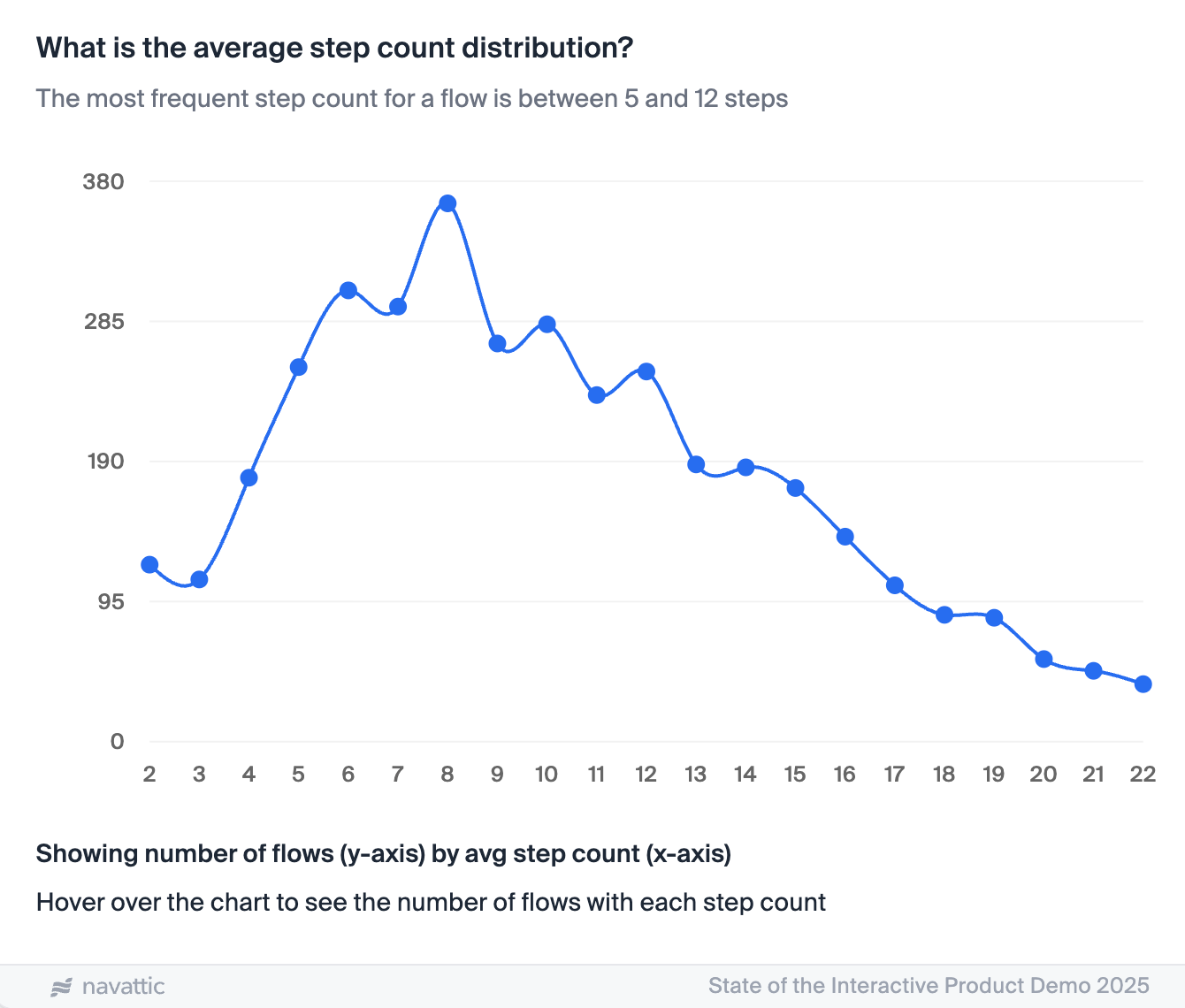
Try to identify what their “aha moment” (when they understand the value) would be and guide them there within the first couple of steps. According to our State of the Interactive Product Demo report, the top 1% of demos keep their Flows relatively concise: 5 - 12 steps.
You might also consider tagging your steps by category, like “Setup,” “Prompting,” or “Results,” so you can see which topics prospects resonate with the most.
If you’re not quite sure what the aha moment would be, try uploading PMM content you have for this new feature into your go-to LLM (like ChatGPT or Claude).
Ask it to pull out 2 or 3 potential aha moments for each persona. Run those by your product, customer success, and sales teams to make sure you’re on the right track.
3. Design Conversational and Interactive Experiences
Now it’s time to design your demo. The goal here is to make users feel like they’re actually using your chatbot or other AI feature, rather than watching a pre-recorded script.
With that in mind, start with high-resolution screen captures and animations to show AI responses generating in real time.
Then, add a combination of modals (to introduce new concepts or highlight key functionality), and tooltips (to provide quick context without interrupting the Flow).
One of Navattic’s customers, Notion, used highly realistic interactive demos to show their AI features as a natural complement to people’s workflows, rather than something else they have to learn and integrate into their day-to-day.
“At Notion, we have what I'd call a unique challenge in that we are a very horizontal product. Some users refer to Notion as their second brain. Instead of telling people about [our AI tools], we decided to show them.
Through our reporting, we’ve learned interactive demos are actually most effective at driving account engagement and influencing pipeline. They’re not just a pure lead gen tactic.”
If you’re having trouble putting everything together, use Navattic Copilot.
It’ll work behind the scenes as you take Captures of your product, writing demo copy, anchoring tooltips, and crafting a cohesive demo story – all based on our highest-performing benchmarks.
That will give you a solid foundation to refine based on the persona you’re trying to target.
4. Deploy and Promote Demos Effectively
The next step is to get your demo in front of the right people. Start by embedding your demo where prospects and customers are already spending their time:
- On your product page (specifically AI-related landing pages)
- In your website navigation
- In help docs
Navattic customer, EVOLVE, nearly “doubled their monthly rate of ‘hot’ leads” from putting just one interactive demo on their website.
Then, promote your demo through:
- Email campaigns to existing leads or customers
- Social media posts highlighting your new AI features
- Paid ads with demos catered to various ICP industries or use cases
- Webinars where you walk through a live demo of your AI feature(s), then share the link for people to explore on their own
If your GTM team is attending a conference, you could set up an interactive demo of your AI product or chatbot on iPads or other devices at your booth.
That way, visitors can get a taste of your product without committing to a sales conversation. Even better, display a QR code that links to your demo so users can explore your AI features at their own pace.
Want more ideas? Check out Top Use Cases for Interactive Demos.
5. Test, Monitor, and Iterate
After you’ve published your demo, keep a close eye on your demo analytics to get a sense of what’s working in your demos and what’s not.
If you notice people are dropping off at a certain step, go through the demo yourself. Is the wording confusing? Is the modal obscuring part of your product?
In cases where you’re not entirely sure where people are getting tripped up (or you just want to test different Captures or copy), create two versions of your demo and A/B test them to see which one has higher:
- View counts
- Engagement rates
- Completion rates
- Time spent in demo
- Form submissions
Feature that one more prominently in your content.
Not sure what “good” demo performance looks like? Here are some benchmarks 7, 30, and 90 days post-launch.
Finally, don’t forget to update your demos over time so they reflect the most recent UI and functionality. Refreshing them with every product release is a good rule of thumb.
To make it easier on yourself, try Navattic’s AI Up-to-Date feature to find and mass replace old dates hiding in your Captures.
6. Personalize and Scale
Not every person going through your demo will care about the same things. So once you feel comfortable with the demo(s) you created, and it’s getting some traction, it’s time to tailor it to specific personas.
One way to do that is to adapt the Flow users see based on their input.
In our interactive demo on the Navattic homepage, for example, we ask people what their role is right off the bat:
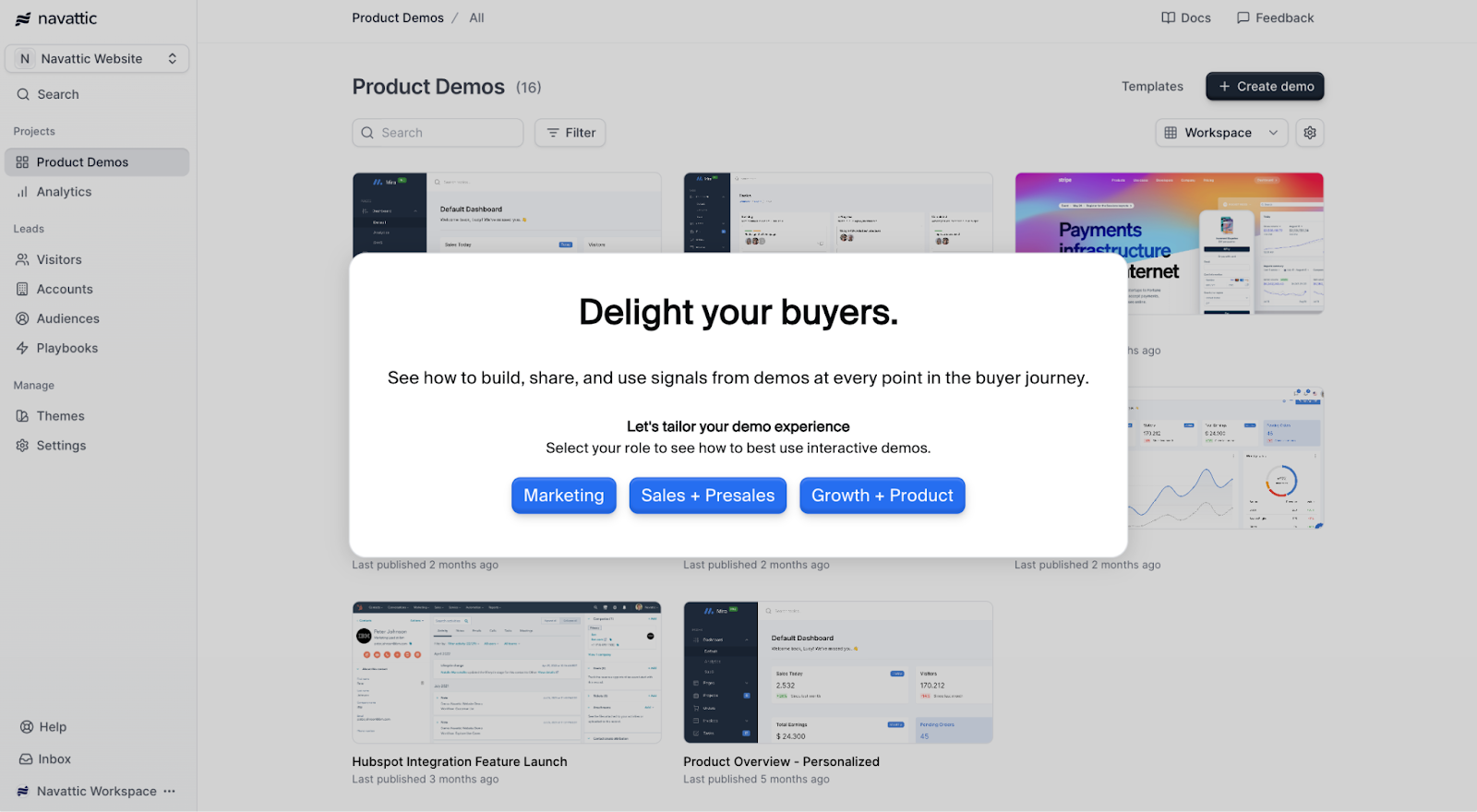
If they click the “Marketing” button, they see a more marketing-focused demo that walks them through the steps to build a demo for a new dashboard launch.
If they click the “Sales + Presales” button, they’ll see a demo of Launchpad, our tool to easily store and share demos.
You could take a similar approach by building separate Flows for use cases or industries and asking people what they’re interested in upfront.
If you want to make your demos even more personalized, use a Navattic Form to gather visitor information.
Then use Navattic’s personalization features to add their Name, Role, and Company Logo to elements of your Captures or to text, so it feels like you made the demo just for them.
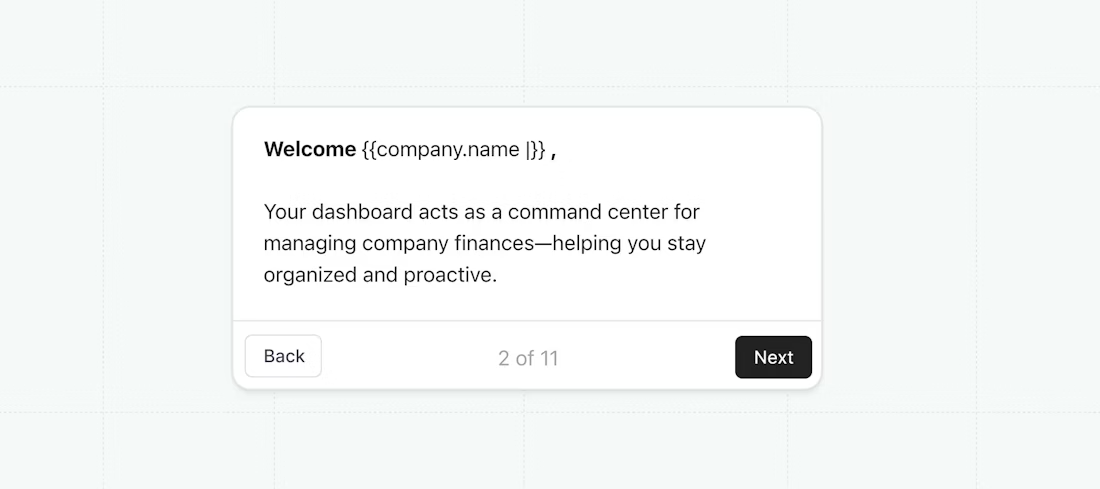
You can even do this at scale by adding marketing platform variables to the end of your demo.
For example, if your demo references a company’s domain, a user’s full name, and the company they work for, your URL should look like this:
https://capture.navattic.com/cl8a8zz4j3300709js91gpy7pk?g=cl89bcxfz3956309jth6qtmmxi&s=0&company.domain={{domain}}&user.firstName={{first_name}}&user.lastName={{last_name}}&company.name={{company}}
Plus, adding query strings like a user’s first and last name or their email automatically identifies which prospects interact with each demo, so you won’t have to form gate.
7. Use Advanced and Emerging Demo Features
Navattic’s own AI features can make demos of your AI product or chatbot more engaging – and speed up the personalization process:
- AI Generated Voiceovers and Avatars can make your demo literally talk to your ideal customers, even if they speak a different language. Navattic has built-in translation for step text and voiceovers.
- Magic Editor lets you edit and personalize specific elements, like text, charts, or tables. Just explain what change you need to make (“Please change all of these account names to manufacturing companies”), and Navattic will do it in seconds.
- Navattic’s AI Writing Assistant can help you add some more pizazz to your demo copy. Use it to draft an alternative version of your demo text and steal the best one liners or descriptions to add to your existing demo. You could also use it as a starting point for customizing a demo for an alternate use case or industry.
- Launchpad lets you save and reuse the personalized demos you create so you’re not always starting from scratch.
9. Examples of Top AI Demos
Several customers are already using interactive demos to highlight their AI features. Here are two examples:
Notion
Notion created a demo library to let users explore AI features on their own.
Each demo runs through one of the most popular use cases – and gives users a description of the value each feature offers and what will be shown in the demo upfront.
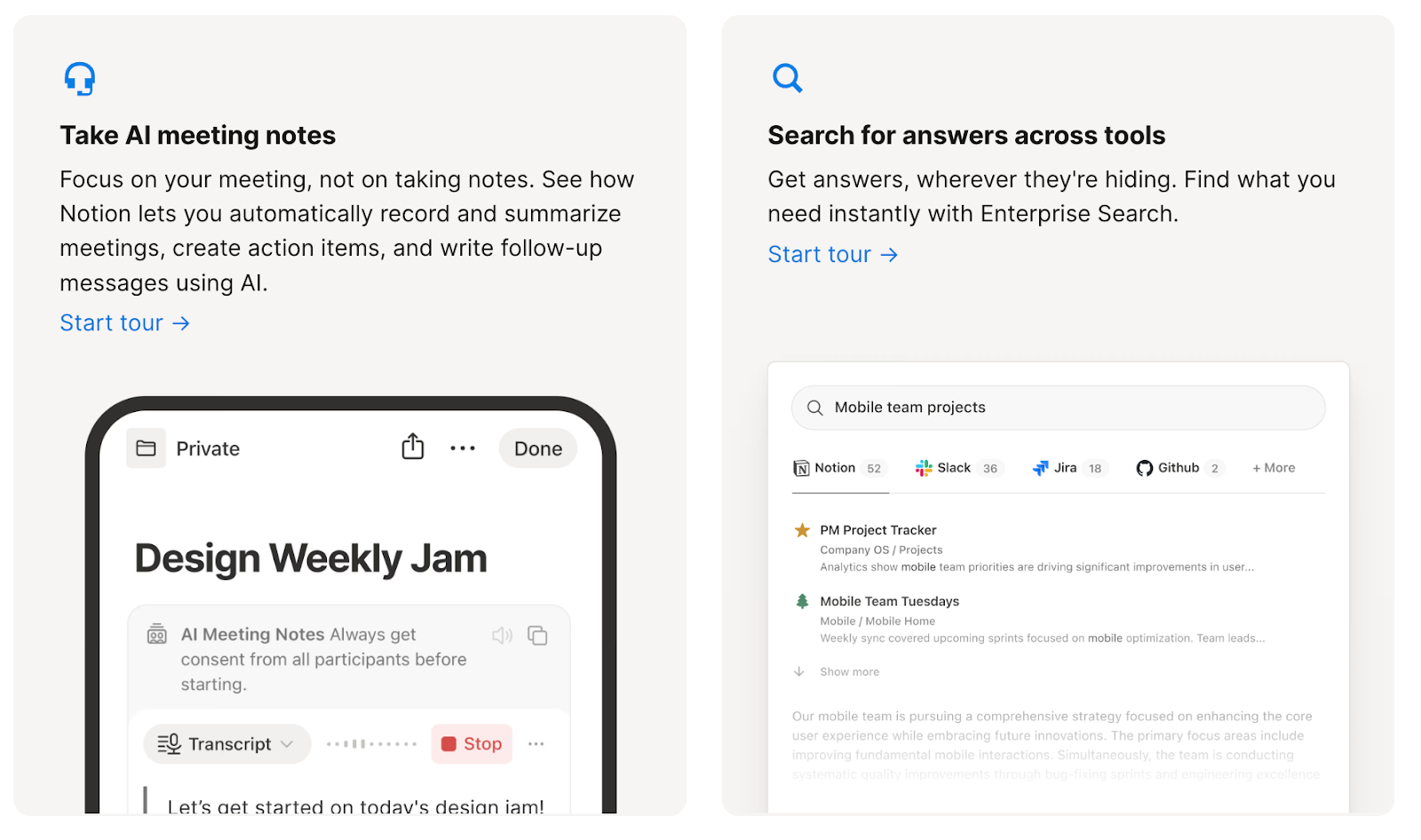
Clicking on one of the “Start a tour →” CTAs opens up a full screen interactive demo showing an AI feature, like live transcription, in action.
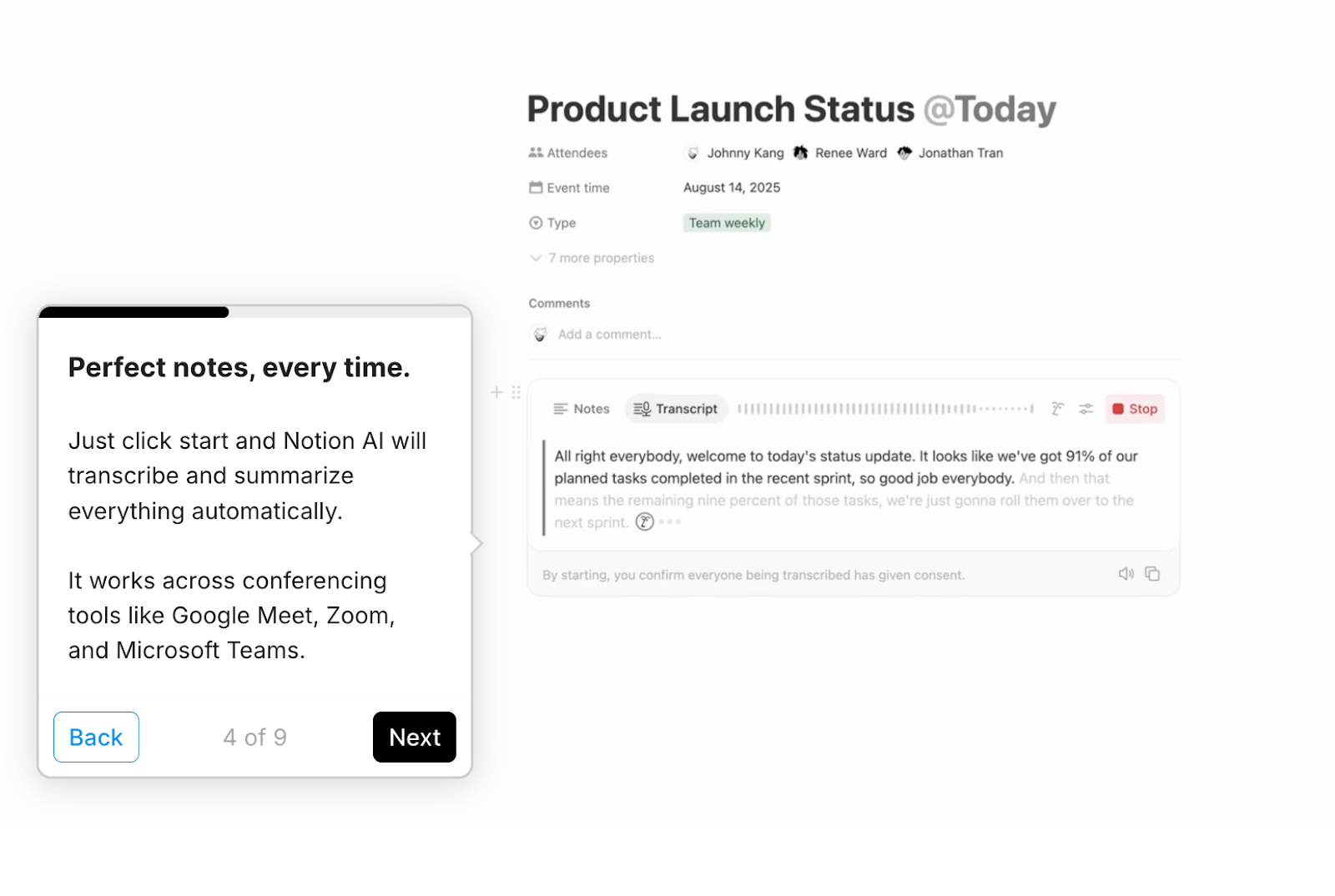
And the way the Notion team designed their demos makes it feel like the person is seeing AI directly respond to certain commands, like a request to create a post-meeting summary email.
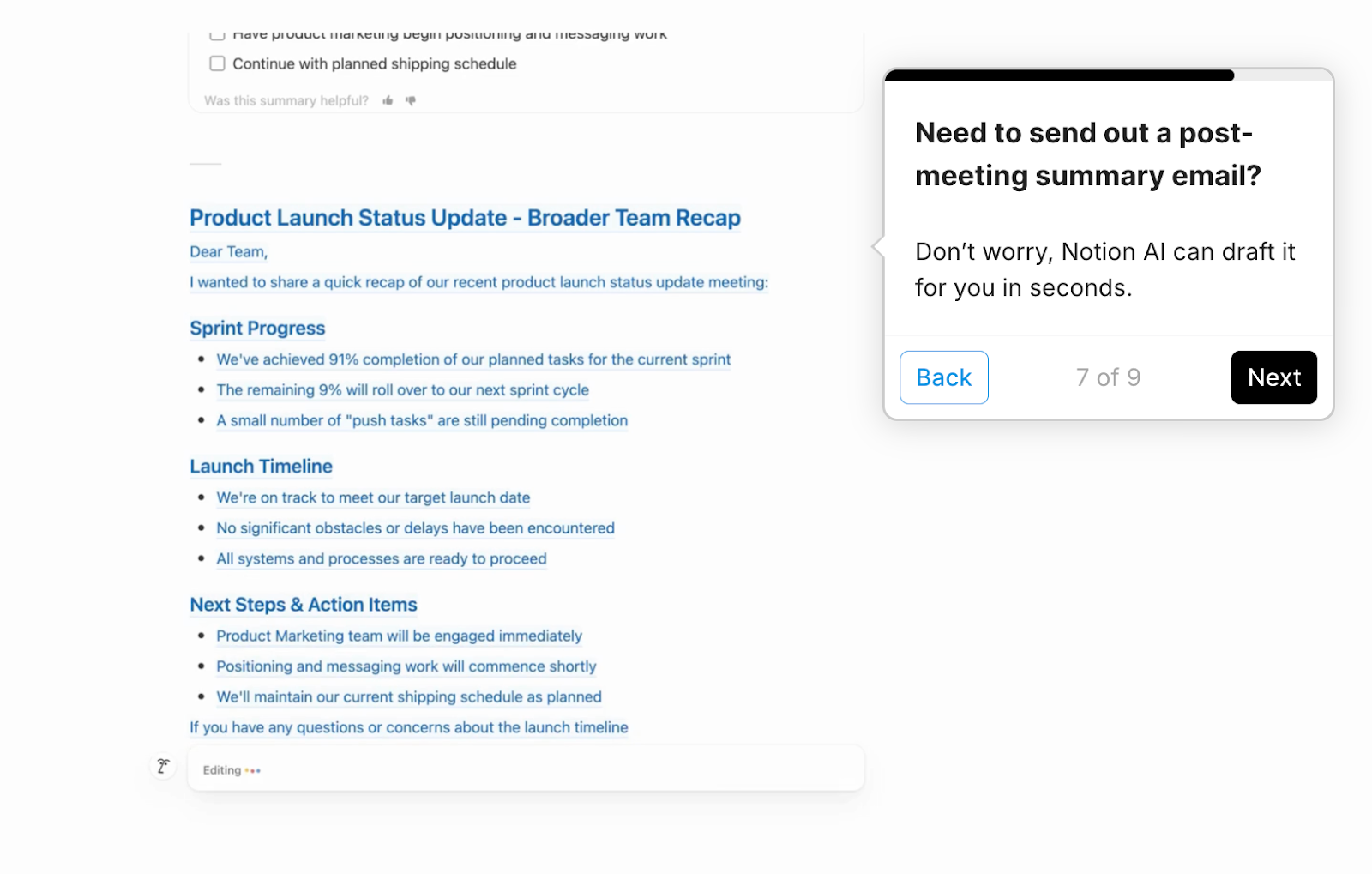
Ultimately, making these features look as if they are functioning “live” helps users feel like they can trust Notion AI to speed up their workflows.
Lokalise
With embedded AI, Lokalise offers on-brand, accurate, and context-specific translations in just one click.
They already feature a product tour prominently in the Resource section of the navigation bar.
To capitalize on that traffic, they added an invite to see “AI in action” at the end to invite users to walk through a real automated translation workflow:
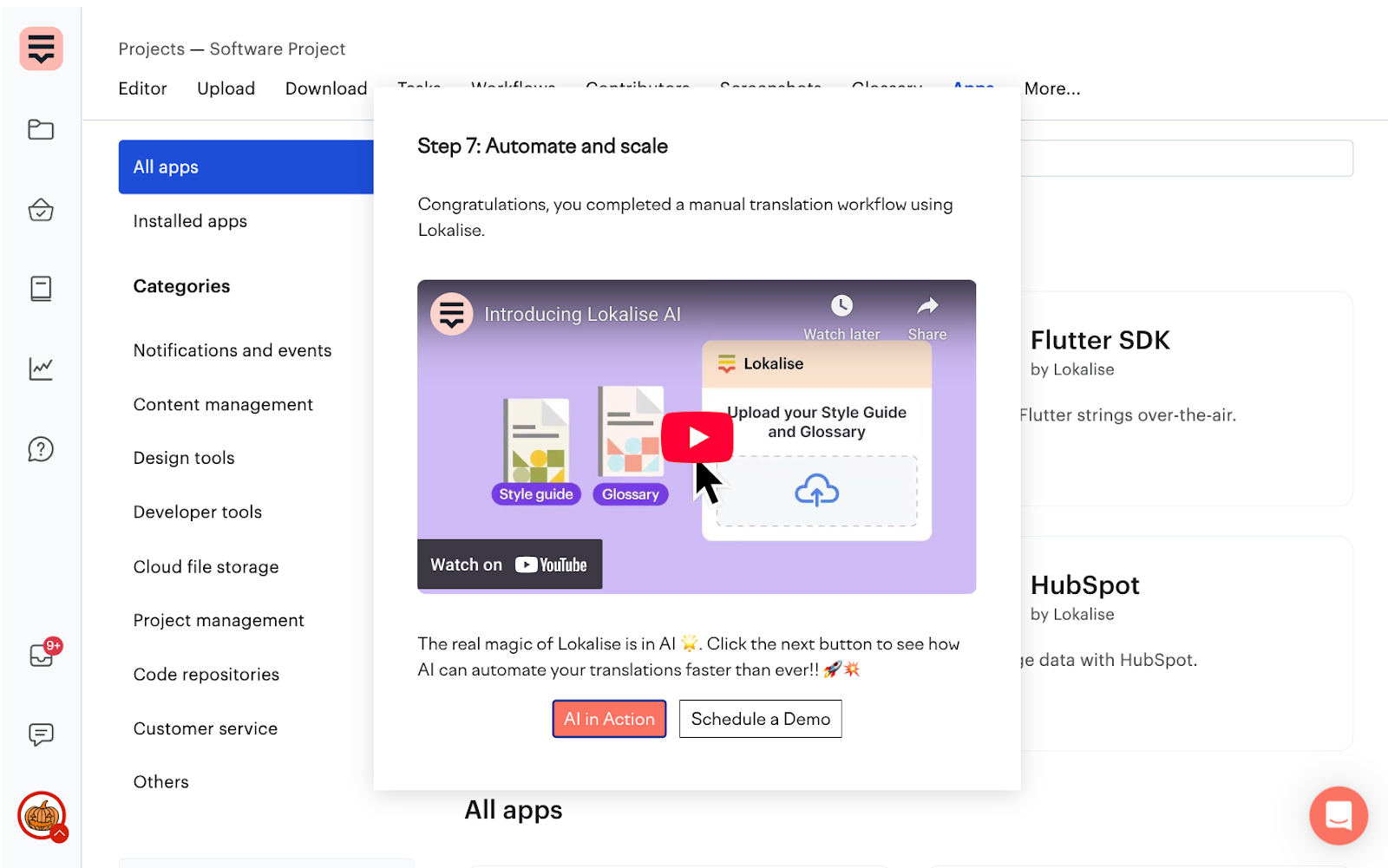
When a user clicks the “AI in action” button, a full-screen interactive demo opens in a new tab, showing exactly how to rephrase or shorten content, make it more SEO-friendly, or ask Lokalise AI to suggest variants.
It even shows how users can update translations in bulk, with instructions to make sure the model has enough context:
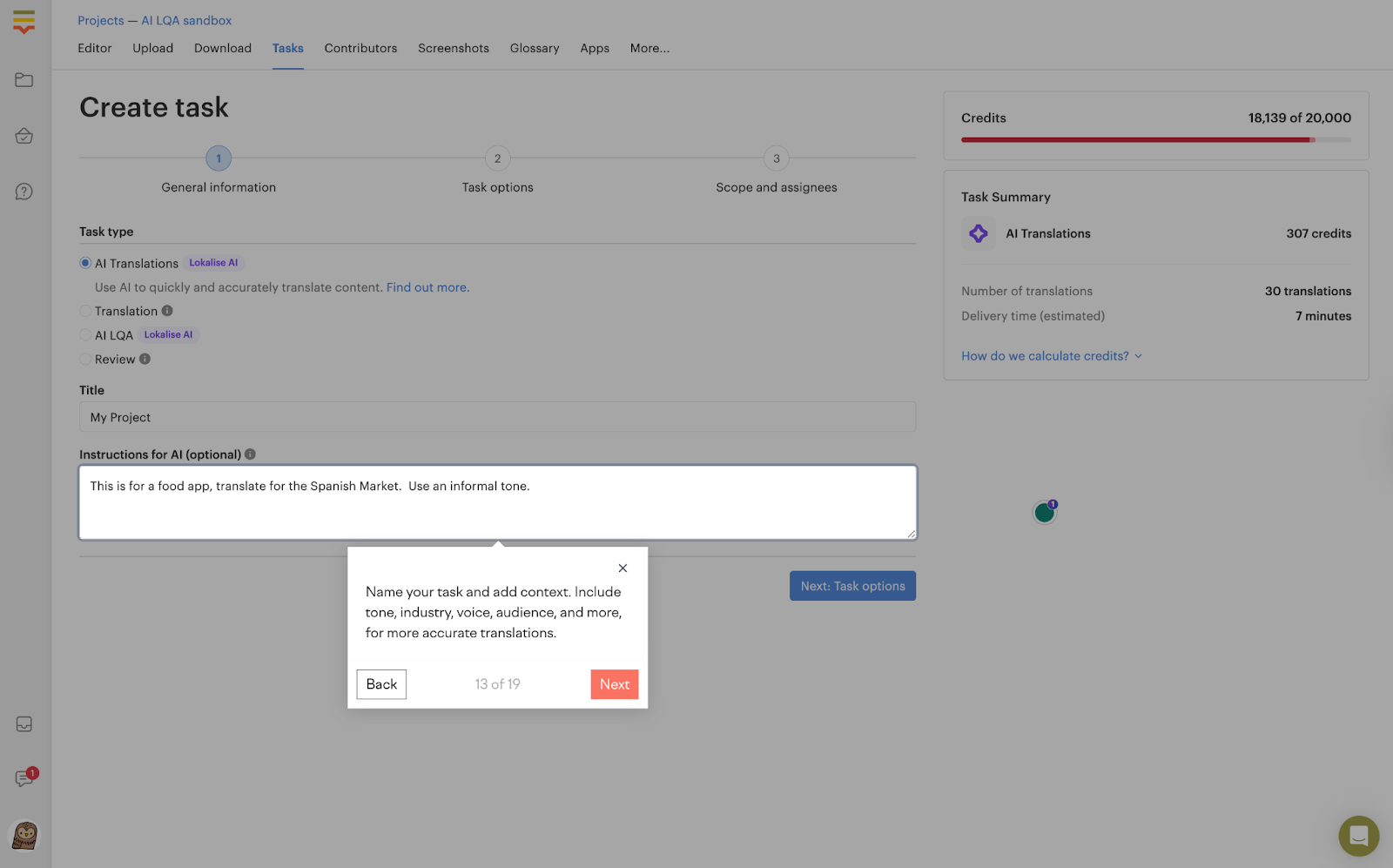
It’s a longer demo (19 steps total), but going into that level of depth gives users confidence that translations will be (1) easy to generate and (2) accurate.
PathFactory
PathFactory, a content intelligence platform, recently built a B2B buying agent (ChatFactory) to turn bloated, hard-to-navigate websites into self-serve buying experiences.
Instead of just listing out ways ChatFactory can help educate visitors and move them forward in the sales cycle, they prompt users to “See it in action.”
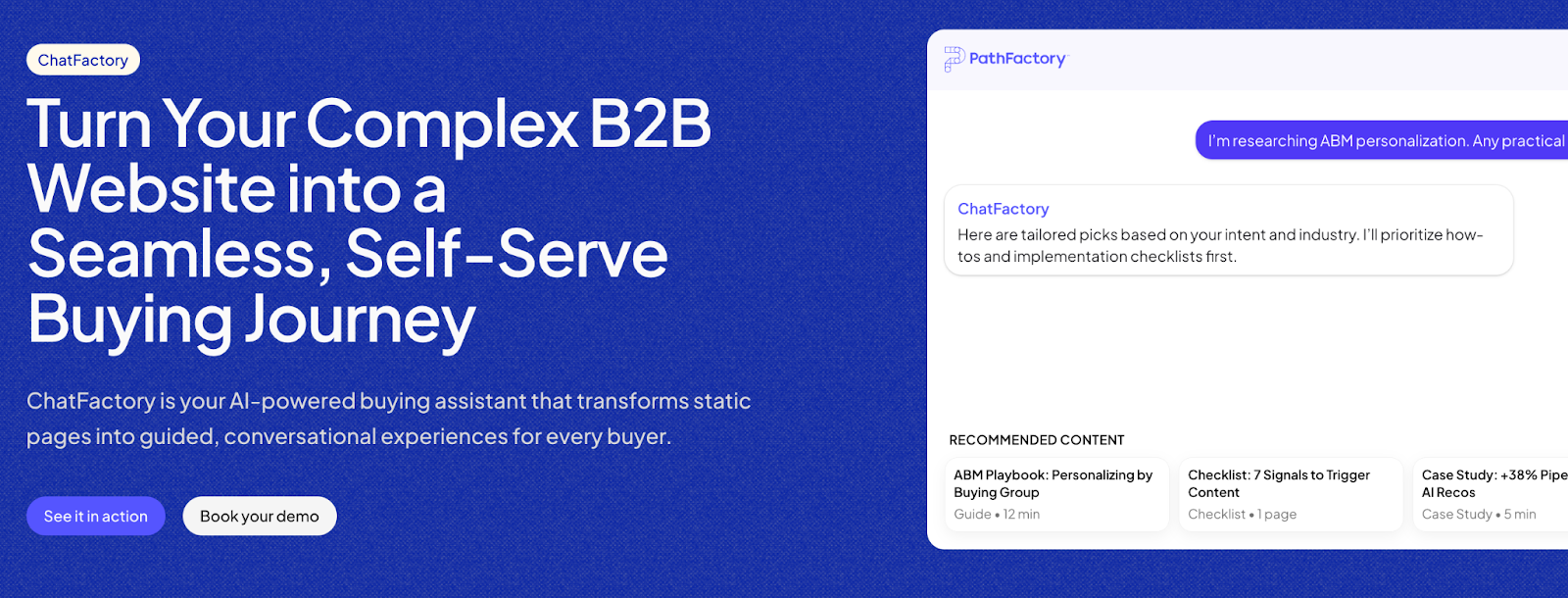
Clicking that button opens up a full-screen interactive demo of ChatFactory that shows how the chatbot:
- Delivers fast and accurate answers about your company
- Recommends specific content
- Captures visitor information
…all without feeling intrusive.
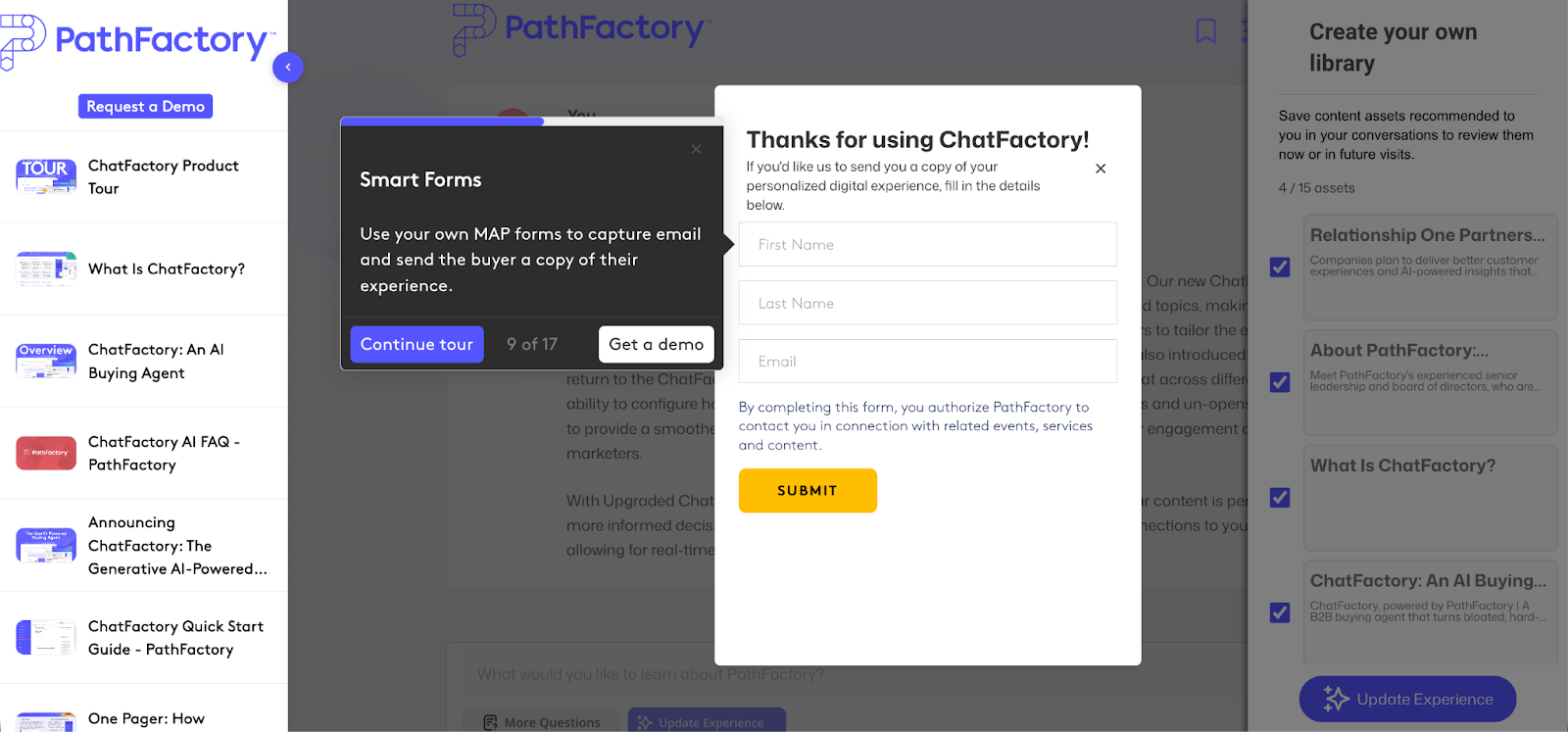
Halfway through the tour, users can sign up for a live demo or continue learning about how to configure and customize ChatFactory to surface relevant content and maintain brand voice.
The team also gives users the option to explore other aspects of the PathFactory product in the left-hand nav at any time, which helps them see how and where ChatFactory would fit into the rest of the platform’s features.
Want to see more AI-focused interactive demos? Read 5 Examples of AI Feature Launch with Interactive Demo.
Or, start building your own with Navattic Copilot.
Turn demos into deals.
Build interactive product demos that engage buyers and close deals faster.